
Create & Engage

Remove unwanted text and watermarks with AI
AI Remover is an online AI text remover for videos and images. Upload a video or image, remove unwanted text overlays, captions, subtitles, labels, or watermarks, and keep the background as natural as possible—all in your browser without installing software.
Building practical AI tools
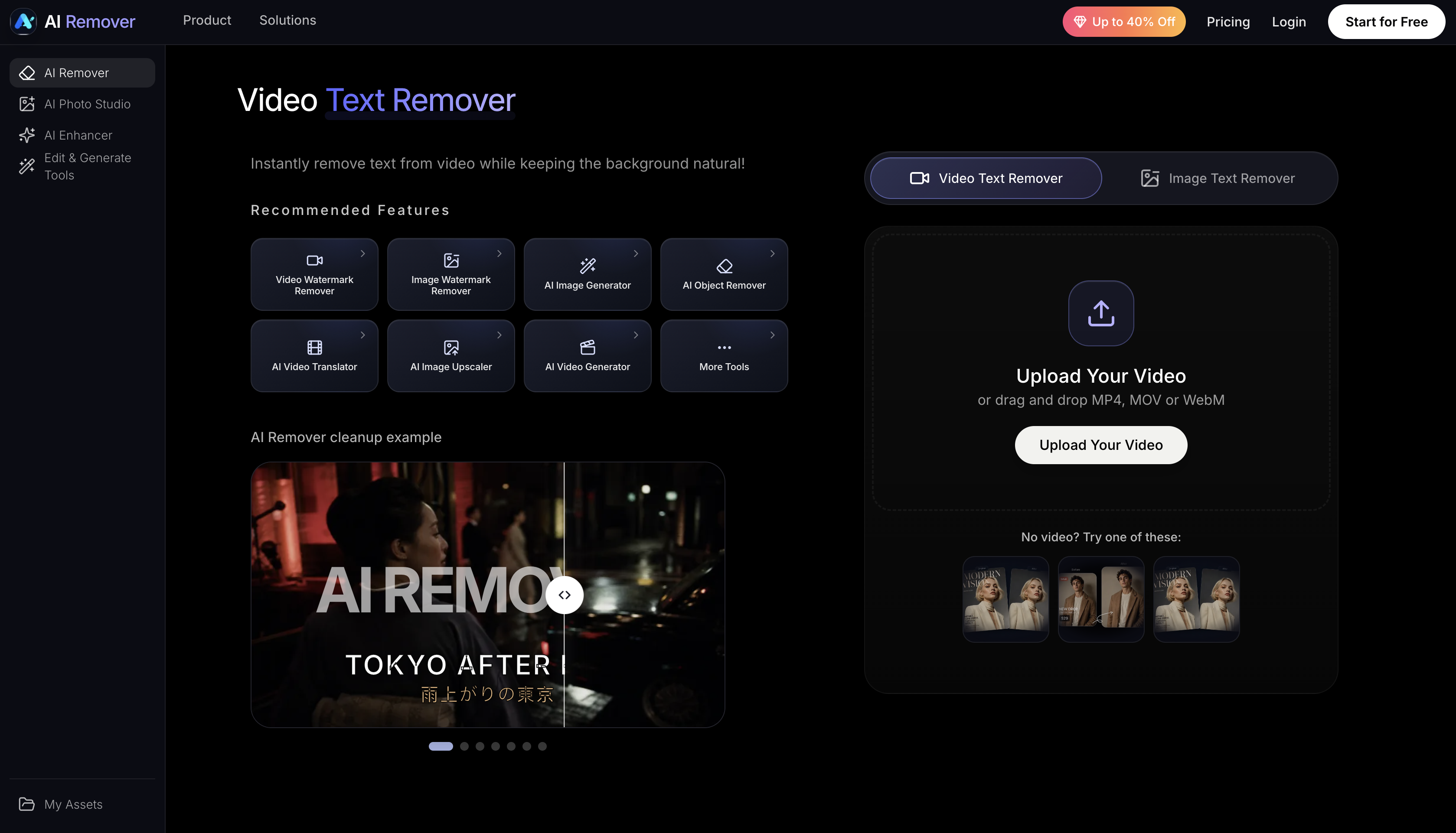


Use Remove Text from Video when the words are part of the video frame, such as labels, captions, usernames, timestamps, or text overlays.
For best results, select only the text area instead of the whole frame. A tighter selection helps AI Remover focus on the unwanted text while preserving the surrounding background.
Upload your video file.
Select the area that contains the unwanted text.
Start the AI text remover from video task.
Preview the processed result.
Download the cleaned video when the result is ready.
Use Remove Subtitles from Video when subtitles are burned into the video and cannot be turned off in a media player.
AI Remover is designed for hardcoded subtitles, translated subtitles, and subtitle bars that are already visible inside the frame. If your subtitle is a separate selectable track, removing that track in a video editor may be faster than AI processing.
Use Remove Captions from Video for auto captions, social captions, creator captions, and other text overlays that sit on top of video content.
Captions often cover faces, products, or moving backgrounds. When that happens, the result depends on motion, background detail, and how much of the frame the captions cover. Short clips and stable backgrounds usually produce cleaner results.
Use Remove Text from Image when you need to remove text from image files, screenshots, posters, product photos, or social graphics.
The image text remover works best when the text sits on a simple background. If the text covers faces, hands, product details, or complex patterns, select carefully and compare the preview before downloading.
Upload an image.
Select the text area.
Run the AI remove text from image task.
Review the result.
Download the cleaned image.
AI Remover is built for common image and video workflows. Image tasks are usually faster than video tasks because videos require frame-by-frame processing.
If a task takes longer than expected, keep the page open until the status updates, then check your assets or task history.
File size
Video duration
Resolution
Motion behind the text
Size of the selected text area
Current processing queue
Use the smallest selection that fully covers the unwanted text.
Avoid selecting important subject details unless they must be repaired.
Test with a short video segment before processing a long file.
Use higher-quality source files when possible.
For subtitles or captions, select the full subtitle region across the frames where it appears.
AI text removal can reconstruct background detail, but it cannot always perfectly recover hidden content when the original text covers important visual information.
Uploaded files are used to process your AI Remover task. If you are signed in, you can review generated assets and task history from your account area.
Do not upload files that you do not have the right to edit or process. For public publishing, make sure your use of the final image or video follows the rights and platform rules that apply to your content.
Video text remover tasks can take longer when the file is large, the clip is long, or the selected area appears across many frames.
Blur can happen when the removed text covers complex background detail, fast motion, faces, or product edges. Try a smaller selection area or process a shorter clip first.
AI Remover can remove subtitles from video when the subtitle is visible inside the frame, but the final quality depends on background complexity and motion behind the subtitle.
Yes. AI Remover runs in the browser, so you can remove text from image files online without installing desktop editing software.
Loading comments...
How the community currently views this idea
Former logistics executive who launched a software platform that automates the sorting of post-consumer garments for textile mills.
Loading...